![Steno_Shield_Logo_White_Transparent-1.png]](https://help.steno.com/hs-fs/hubfs/Steno_Shield_Logo_White_Transparent-1.png?height=40&name=Steno_Shield_Logo_White_Transparent-1.png)
Role-Based Access Control (RBAC) is a security feature that allows your firm to control which users can access specific cases and jobs in your Steno Firm Dashboard.
Important Note
- Enabling RBAC does not change existing job access
- All users keep their current permissions until you make changes
- Changes take effect immediately once applied
Choosing Your Security Model
You have two options for how RBAC works in your firm:
Option 1: Open Collaboration (Recommended for Most Firms)
- Default behavior: Everyone can see all cases (same as today)
- When needed: Restrict specific confidential cases
- Best for: Firms that want to occasionally lock down sensitive matters
Option 2: Restricted Access by Default
- Default behavior: New cases only visible to Firm admins and the person who creates them
- When needed: Case admins must explicitly share access
- Best for: Firms requiring strict security on all cases
Update Default Case Access
Prerequisites: You must be a Firm Administrator to enable RBAC
Step 1: Access Firm Settings
- Log into your Firm Dashboard
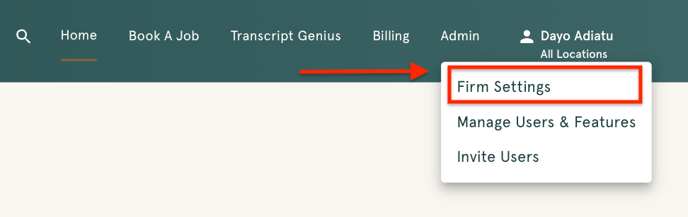
- Click Admin in the top navigation
- Select Firm Settings from the dropdown menu
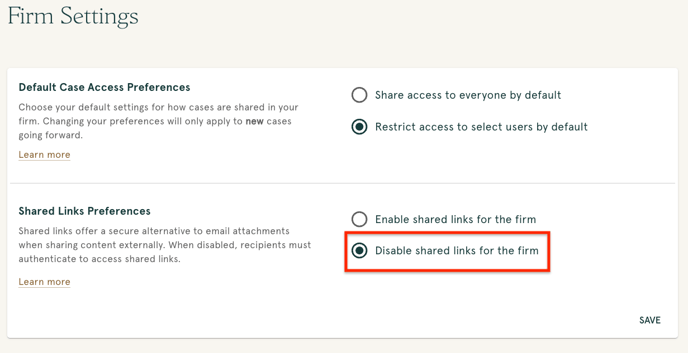
Step 2: Configure Default Case Access Settings
You'll see two options:
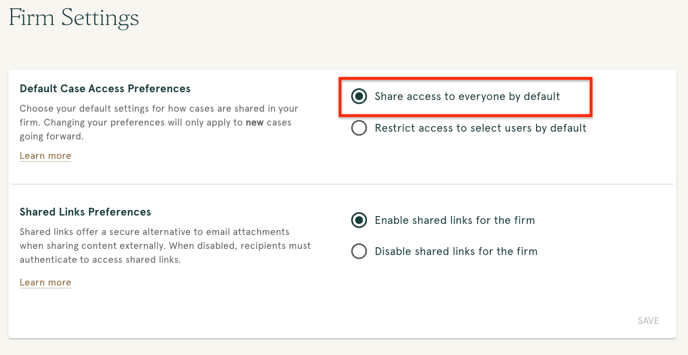
Option 1: Share access to everyone by default- Select this to maintain current behavior
- All new cases will be visible to everyone in your firm
- You can still restrict individual cases when needed
Option 2: Restrict access to select users by default
- Select this for maximum security
- New cases will only be visible to:
- The person who books the first job (becomes Case Admin)
- Other Firm Administrators
- Case Admins must explicitly grant access to other users
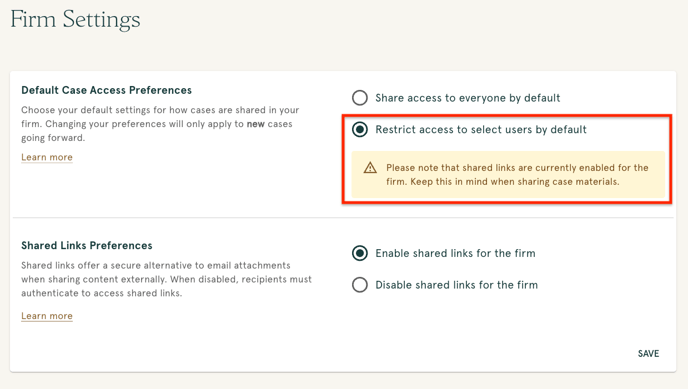
💡 Security Tip: Enabling case restrictions but leaving shared links on means anyone with an email link can still access materials. For complete control, disable shared links too.
Step 3: Save Your Settings
- Select your preferred option
- Click Save at the bottom of the page
- You'll see a confirmation that your settings have been updated
.png?width=688&height=300&name=download%20(16).png)
Configure Shared Links
Shared links are secure URLs in email notifications that provide direct access to transcripts, exhibits, and job materials without requiring email attachments. You can enable or disable this feature:
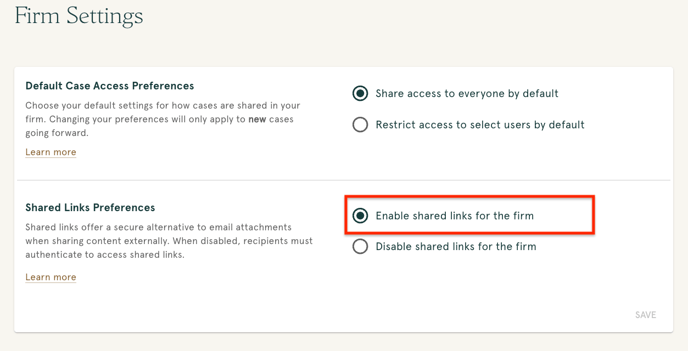
Option 1: Enable shared links for the firm (Default)
- When shared links are enabled, anyone with the link can access the materials directly
Important: With this setting, no dashboard account or case permissions is required to view job materials.
Option 2: Disable shared links for the firm
- Dashboard login required before viewing any content
- When shared links are disabled, your RBAC permissions are fully enforced: recipients without case access cannot view materials, even with the email link.
Save Your Changes
- Select your preferred setting
- Click Save Changes
- Settings take effect immediately for new emails
Important: Shared links are checked when clicked, not when sent. If you disable shared links, all previously sent shared email links will stop working and require dashboard login.
Need help? Contact concierge@steno.com for setup assistance.
More Articles:
What Is Role-Based Access Control?
What Are The Firm Dashboard Roles