![Steno_Shield_Logo_White_Transparent-1.png]](https://help.steno.com/hs-fs/hubfs/Steno_Shield_Logo_White_Transparent-1.png?height=40&name=Steno_Shield_Logo_White_Transparent-1.png)
What Are Shared Links?
Shared links are secure URLs included in email notifications that allow recipients to access transcripts, exhibits, and job materials directly. These links offer a secure alternative to email attachments. Instead of sending large files via email, recipients get a secure link to access materials.
How to Modify Shared Links
Prerequisites: You must be a Firm Administrator to configure shared links
Step 1: Access Firm Settings
- Log into your Firm Dashboard
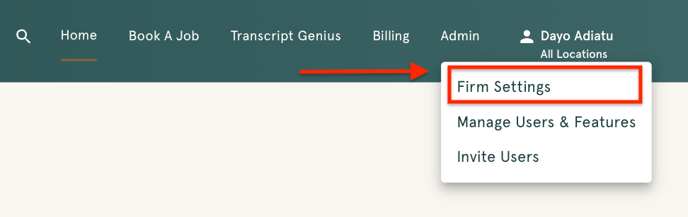
- Click Admin in the top navigation
- Select Firm Settings from the dropdown menu
Step 2: Configure Settings
You'll see two options:
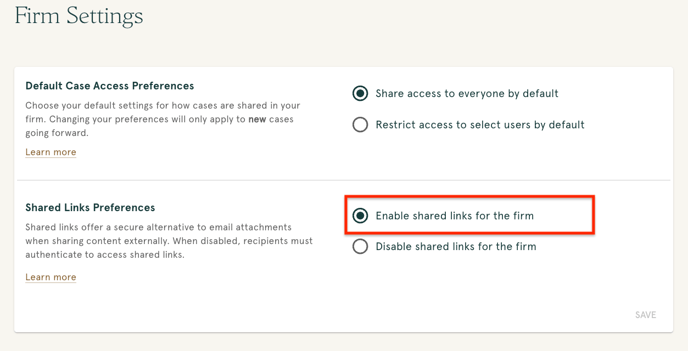
Option 1: Enable shared links for the firm (Default)
- Important: With this setting, anyone who has the link can access materials—no dashboard account or case permissions required.
Option 2: Disable shared links for the firm
- Dashboard login required before viewing any content
- When shared links are disabled, your RBAC permissions are fully enforced: recipients without case access cannot view materials, even with the email link.
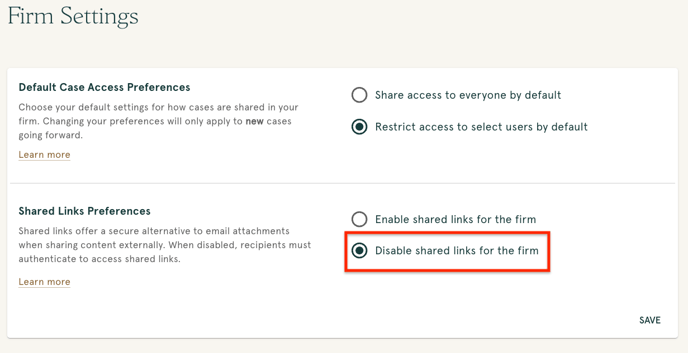
Note: If you disable shared links, all previously sent shared email links will stop working and require dashboard login.
Step 3: Save Your Changes
- Select your preferred setting
- Click Save Changes
- Settings take effect immediately for new emails
Need help? Contact concierge@steno.com for setup assistance.
More Articles:
What Is Role-Based Access Control?
How To Enable Role-Based Access