![Steno_Shield_Logo_White_Transparent-1.png]](https://help.steno.com/hs-fs/hubfs/Steno_Shield_Logo_White_Transparent-1.png?height=40&name=Steno_Shield_Logo_White_Transparent-1.png)
Prerequisites
- You must have Transcript Genius Interrogation enabled to upload transcripts. Click here to learn how to enable Transcript Genius for your firm.
Steps to Upload External Transcripts
1. Log into your Firm Dashboard
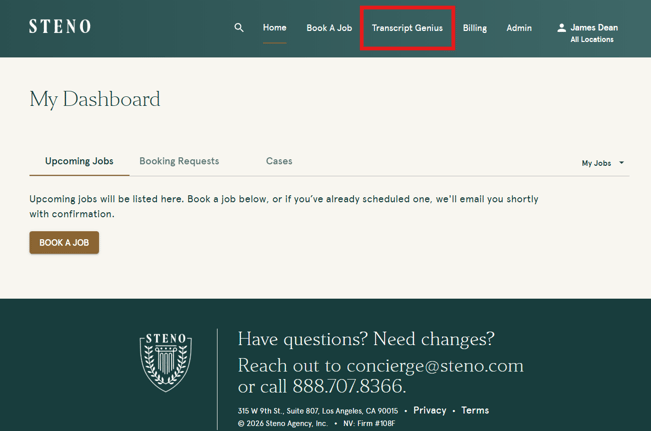
2. Navigate to the Transcript Genius tab in the navigation.
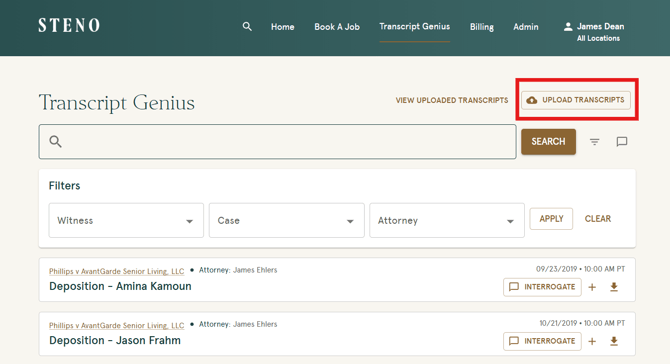
3. Click the 'Upload Transcripts' button in the top right corner.
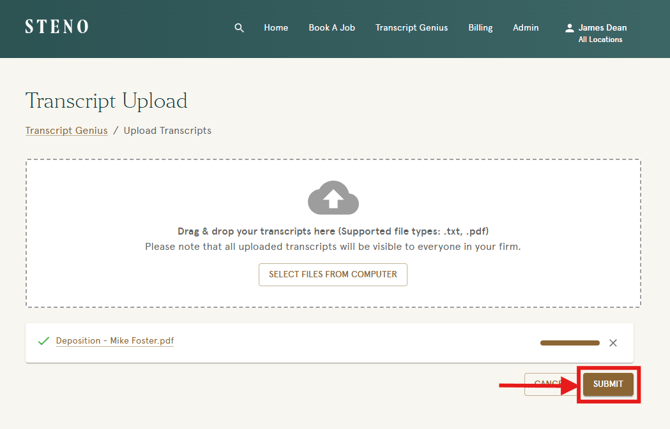
4. Drag and drop your file(s) into the upload area, or select files from your computer.
Supported file types: .txt and .pdf
5. Click 'Submit' to begin uploading.
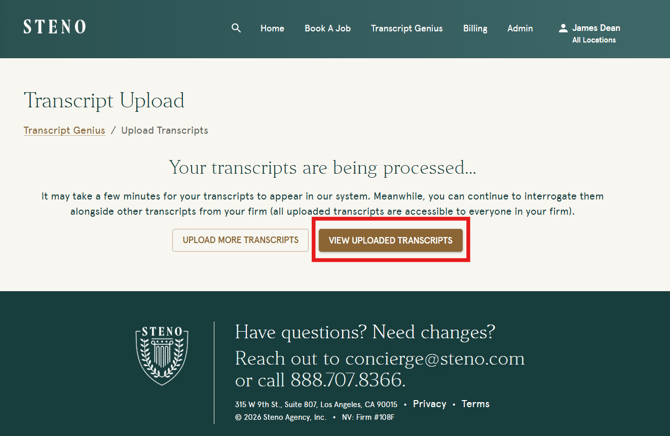
6. From the processing page, you can either upload additional transcripts or click 'View Uploaded Transcripts' to see your uploads.
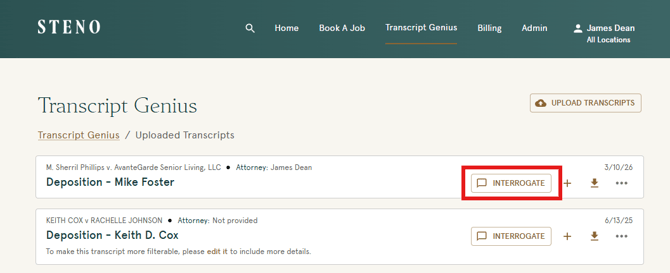
7. Your uploaded transcript will now be listed on the "Uploaded Transcripts" page.
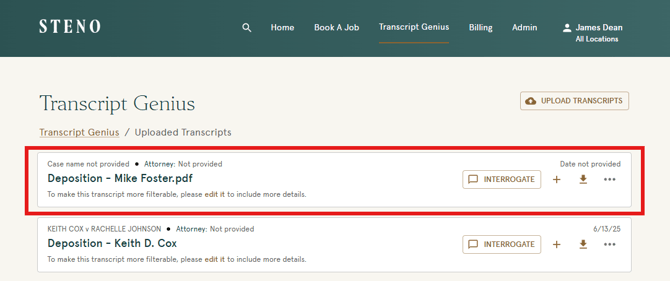
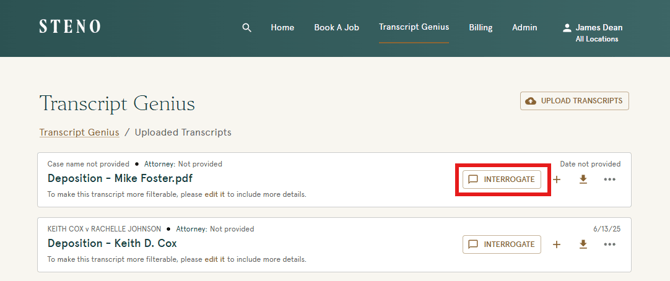
8. Click 'Interrogate' to begin using Transcript Genius features on your uploaded transcript.
Editing Transcript Details
Adding details to your uploaded transcripts makes them easier to search and filter on the "Uploaded Transcripts" page.
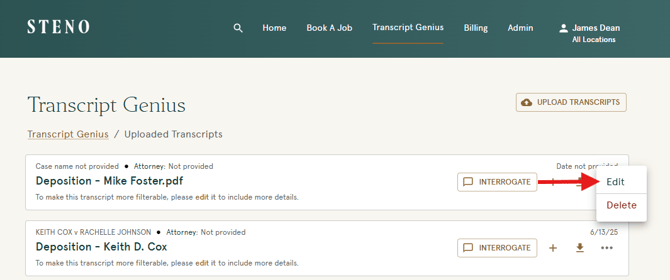
1. On the "Uploaded Transcripts" page, click the three dots next to the transcript you wish to edit and select 'Edit'.
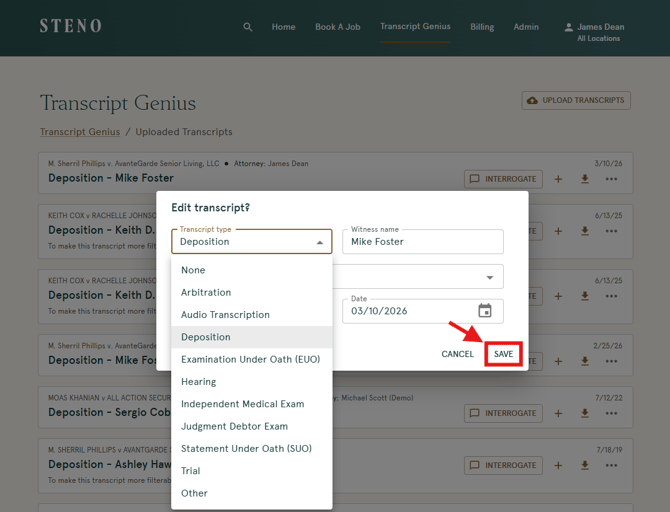
2. Fill in the available fields with the relevant transcript details. Adding this information makes your transcripts easier to search and filter. Click 'Save' to apply your changes.
Finding Your Uploaded Transcripts
All externally uploaded transcripts can be found on the Uploaded Transcripts page within the Transcript Genius tab. This is where you can view, manage, and interrogate any transcripts your firm has uploaded.
1. Navigate to the Transcript Genius tab in your Firm Dashboard.
2. Click 'View Uploaded Transcripts' to access the Uploaded Transcripts page.
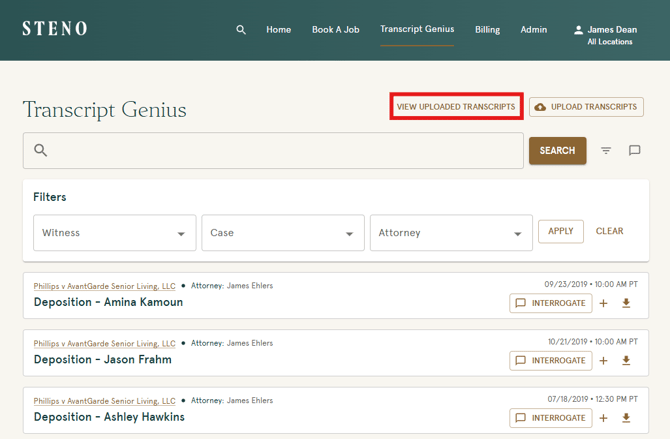
3. Click 'Interrogate' next to any transcript to begin using Transcript Genius features.
Important Notes
-
All uploaded transcripts will be visible to everyone in your firm.
-
To interrogate an uploaded transcript alongside a Steno provided transcript, check out our guide: How Do I Interrogate Multiple Transcripts at Once?
Watch The Click-Through Demo
Troubleshooting
- If you do not see the Transcript Genius tab in your navigation, your firm administrator may need to enable Transcript Genius Interrogation for your account. Click here to learn how.
- If your file type is not supported, ensure your transcript is saved as a .txt or .pdf file before uploading.
- For additional support, contact Steno at concierge@steno.com.