![Steno_Shield_Logo_White_Transparent-1.png]](https://help.steno.com/hs-fs/hubfs/Steno_Shield_Logo_White_Transparent-1.png?height=40&name=Steno_Shield_Logo_White_Transparent-1.png)
Prerequisites
- You must be a Firm Administrator to enable Transcript Genius. Click here to learn how to find your Firm Admin.
Not a Firm Administrator?
You can still request access directly. Navigate to the 'Transcript Genius' page in your Firm Dashboard and click 'Request Access'. Your firm admin will receive an email with a direct link to enable it for you, no need to reach out manually.
Steps To Enable Transcript Genius
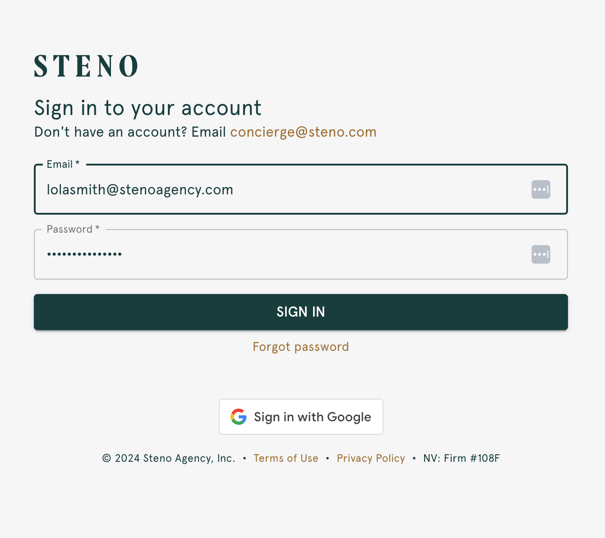
1. Log into your Firm Dashboard
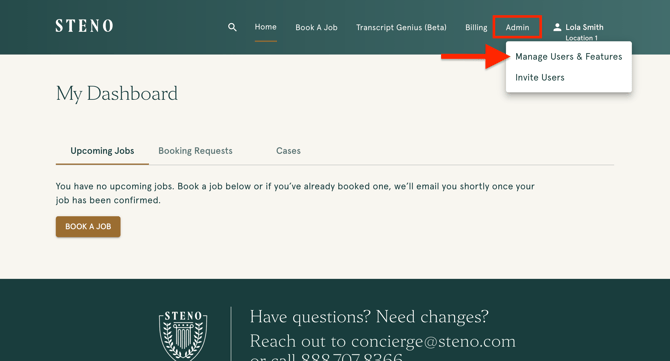
2. Navigate to the Admin tab in the navigation and select 'Manage Users and Features' from the dropdown. If you do not see the Admin option in your navigation, you may not have admin access. See the section above for how to request access.
Enable Transcript Genius Firm-Wide
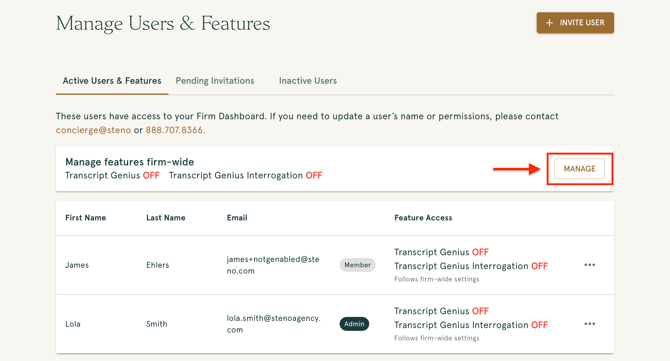
Here you can activate Transcript Genius across your entire firm or on a user by user basis.
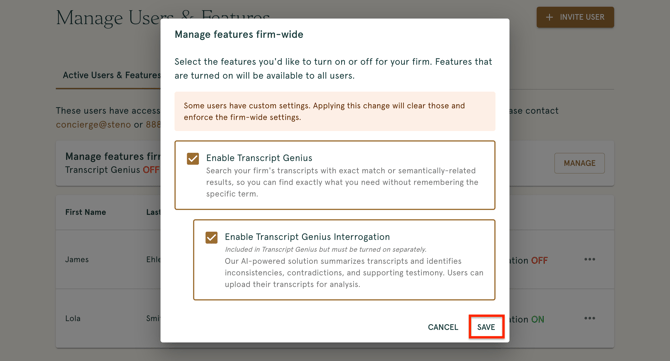
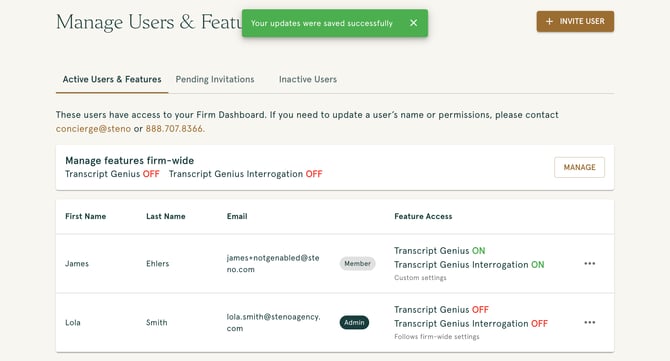
1. If activating Transcript Genius across your entire firm, select the 'Manage' button.
2. You will see two options for enabling Transcript Genius:
a. Transcript Genius: This option enables search functionality across all transcripts, including exact match and semantic search capabilities. This does not use AI technology.
b. Transcript Genius Interrogation: This option includes AI-powered transcript interrogation and the ability to upload transcripts.
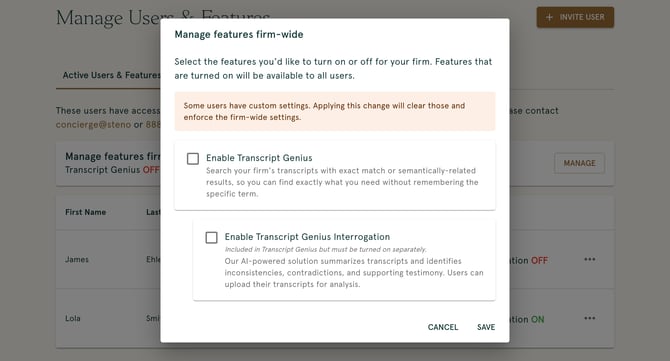
3. Select the option that best fits your firm's needs and policies and save your changes.
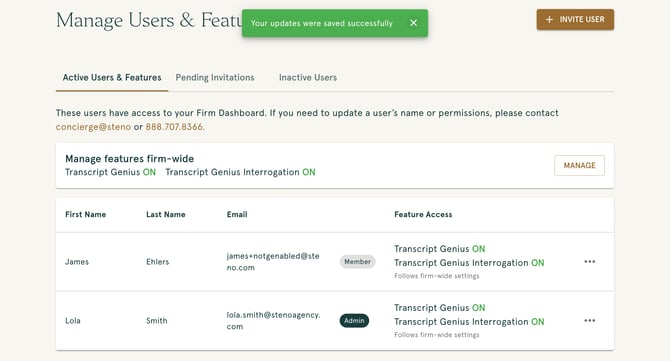
4. Once changes are saved, the status next to the enabled feature will indicate 'ON' in green text.
Enable Transcript Genius For Specific Users
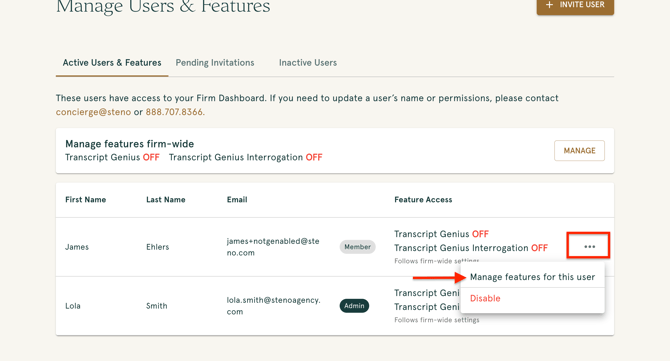
1. If enabling Transcript Genius for specific users, select the 3 dots next to the user's name and select 'Manage Features For This User'.
2. You will see two options for enabling Transcript Genius:
a. Transcript Genius: This option enables search functionality across all transcripts, including exact match and semantic search capabilities. This does not use AI technology.
b. Transcript Genius Interrogation: This option includes AI-powered analysis and the ability to upload transcripts.
3. Select the option that best fits your firm's needs and policies and save your changes.
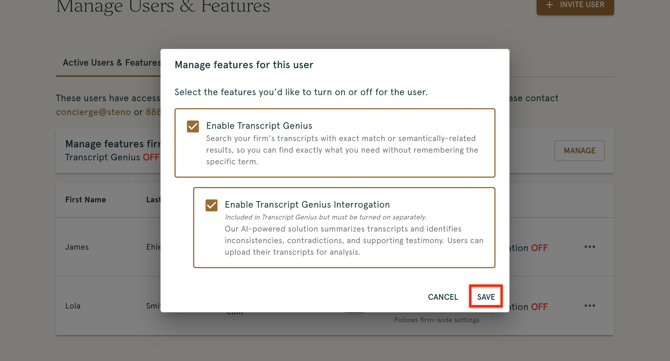
4. Once changes are saved, the status next to the enabled feature will indicate 'ON.'
Watch The Click-Through Demo
Troubleshooting
- If you do not see the Admin option in your navigation, you can request access directly from Transcript Genius. Navigate to the 'Transcript Genius' page in your Firm Dashboard and click 'Request Access'. This automatically sends your firm admin an email with a direct link to enable Transcript Genius for you. If you're not sure who your Firm Administrator is, follow these instructions.
- If you don't see the Transcript Genius option in the Manage Users & Features page, please contact Steno support at concierge@steno.com.
- If individual users are having trouble accessing Transcript Genius after you've enabled it, double-check their permissions in the Manage Features section to ensure all changes are saved.