![Steno_Shield_Logo_White_Transparent-1.png]](https://help.steno.com/hs-fs/hubfs/Steno_Shield_Logo_White_Transparent-1.png?height=40&name=Steno_Shield_Logo_White_Transparent-1.png)
Prerequisites
- You must have Transcript Genius Interrogation enabled to interrogate transcripts. Click here to learn how to enable Transcript Genius for your firm.
Adding Transcripts
1. Log into your Firm Dashboard
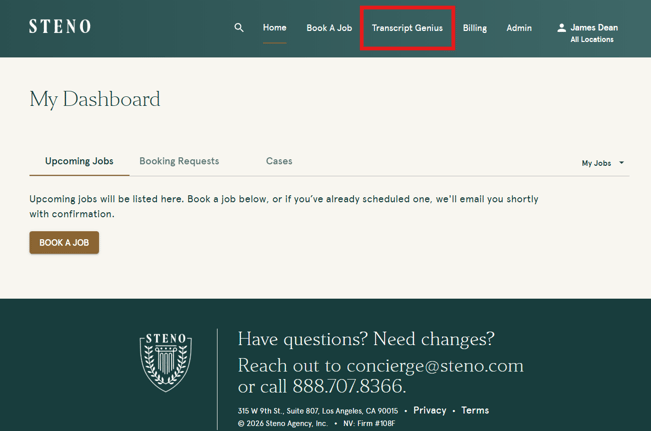
2. Navigate to the Transcript Genius tab in the navigation.
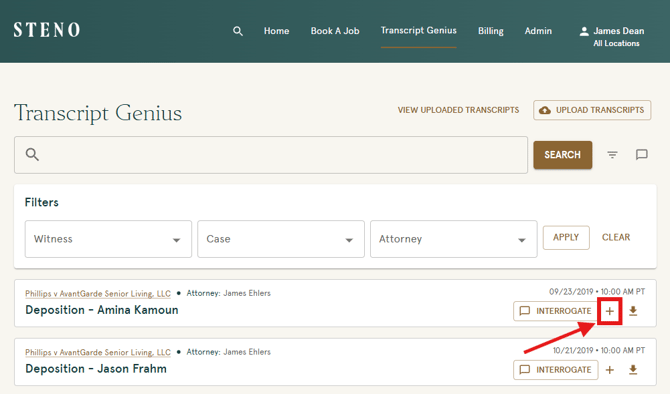
3. Click the plus sign next to each transcript you wish to interrogate.
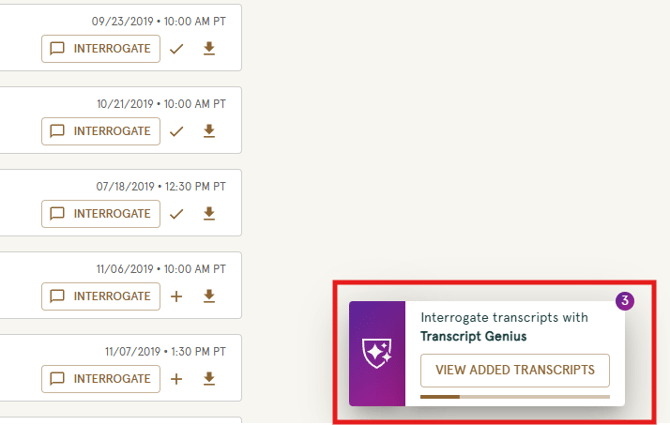
4. As you add transcripts, a panel will appear on the right side of the screen displaying a running count of how many transcripts have been added and a progress bar showing how much space remains. The number of transcripts you can add will vary depending on the size of each transcript.
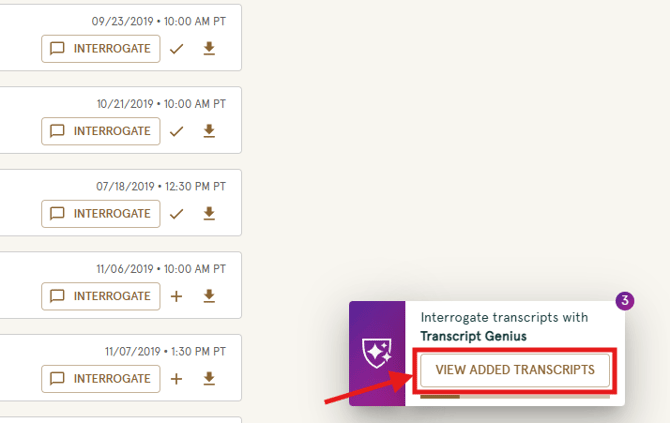
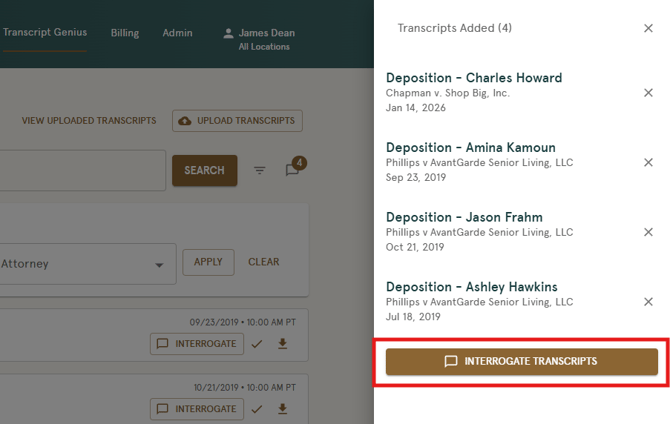
5. Once you have added your transcripts, click 'View Added Transcripts' to review your list.
Reviewing Your List
6. From the added transcripts list, you can review your selections, remove any transcripts, or click back to add more before proceeding.
7. When you are ready, click 'Interrogate Transcripts' to begin.
Interrogating Multiple Transcripts
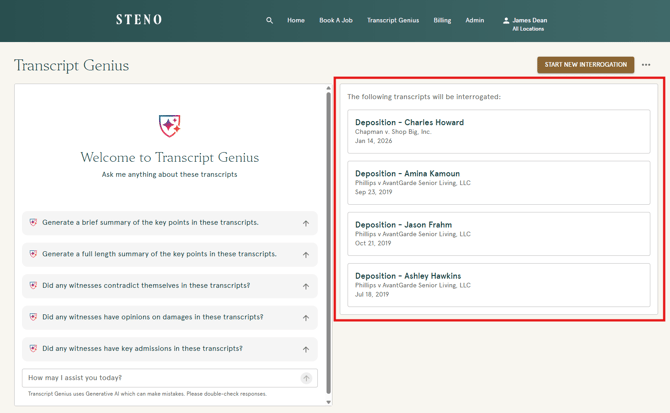
7. You will be taken to the Transcript Genius interrogation page. On the right side of the screen, you will see a list of all added transcripts.
8. Click on any transcript to expand or collapse it and review its content individually.
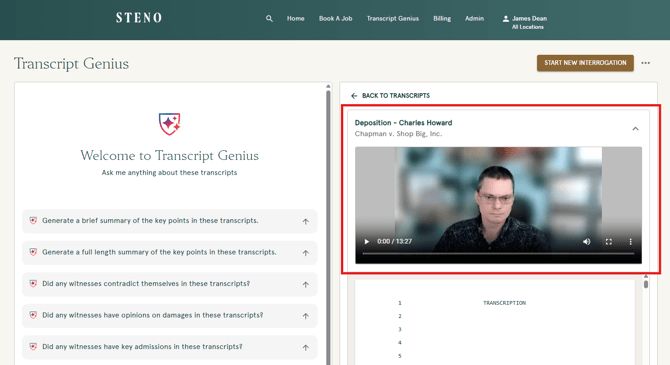
If a transcript includes purchased video and Text-to-Video Sync (T2VS), the video will populate as normal when the transcript is expanded. Learn more about How to Review Synced Video in Transcript Genius.
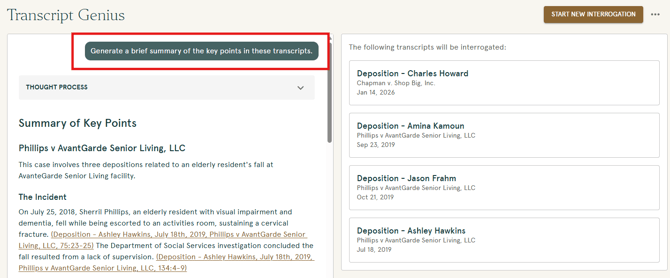
9. Use your own prompts or choose from pre-built options to summarize, compare, and interrogate your transcripts.
Troubleshooting
- If you have reached the capacity limit on the progress bar, you have added the maximum amount of content for a single interrogation session. Consider removing larger transcripts to make room for additional ones.
- For additional support, contact Steno at concierge@steno.com.