![Steno_Shield_Logo_White_Transparent-1.png]](https://help.steno.com/hs-fs/hubfs/Steno_Shield_Logo_White_Transparent-1.png?height=40&name=Steno_Shield_Logo_White_Transparent-1.png)
Prerequisites
- You must have Transcript Genius enabled for your firm. Click here to learn how.
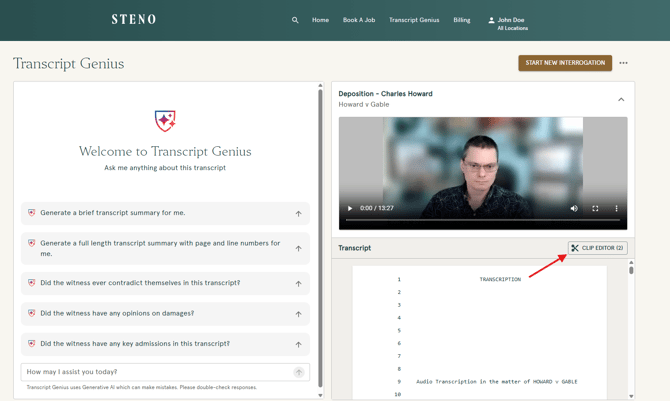
- The transcript you want to clip must include Text-to-Video Sync ordered through Steno.
Overview
Clip cutting lets you select, trim, and export portions of your synced deposition video directly in Transcript Genius. It's included at no additional cost, and everything happens right inside your Firm Dashboard.
Entering Clip Editor
1. Log into your Firm Dashboard.
2. Open a transcript that includes Text-to-Video Sync. Not sure how to access your synced video? Click here to learn more.
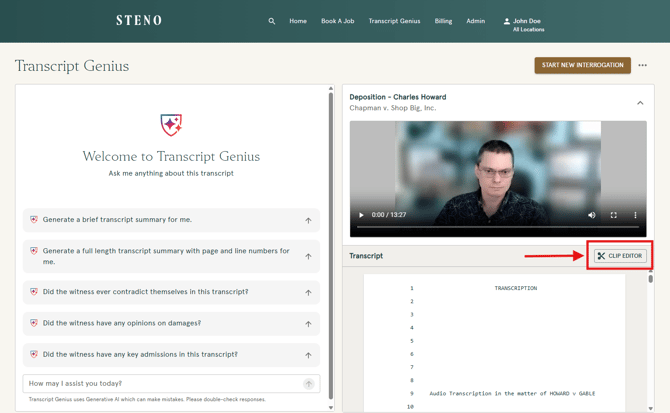
3. Click the 'Clip Editor' button to enter clip cutting mode. The view will expand with your video and transcript on the left, and the clip list on the right.
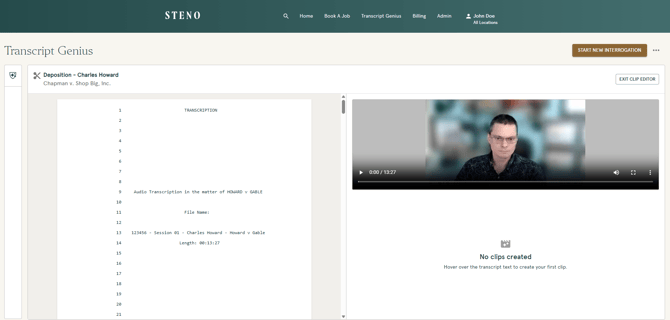
Creating a Clip
1. Scroll past the caption page to the body of the transcript. As you hover over the transcript text, a Start icon will appear on the left side.
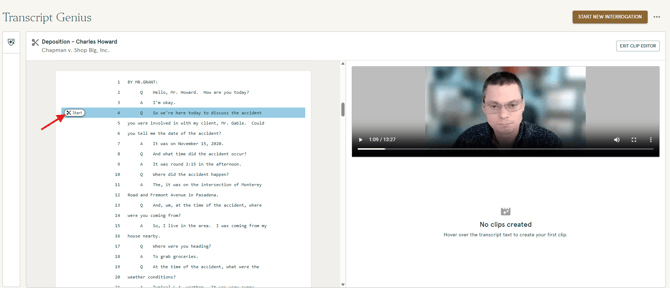
2. Click the Start icon to mark the beginning of your clip, then scroll to where you want it to end and click the End icon. Your selection will highlight green.
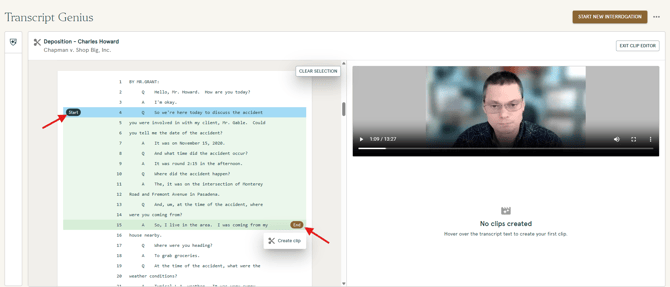
3. Click 'Create Clip' to add it to your list.
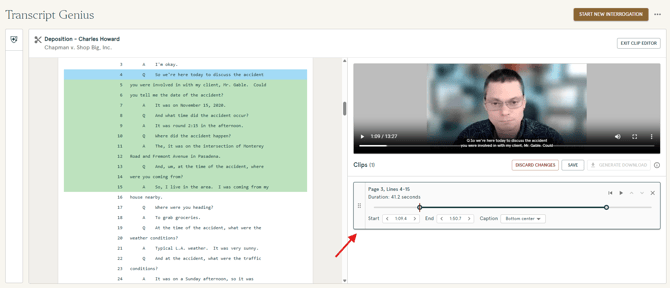
If you need to start over, click 'Clear Selection' to reset.
To add more clips, just repeat the same process. Each new clip will be added to your list on the right.
Editing Clips
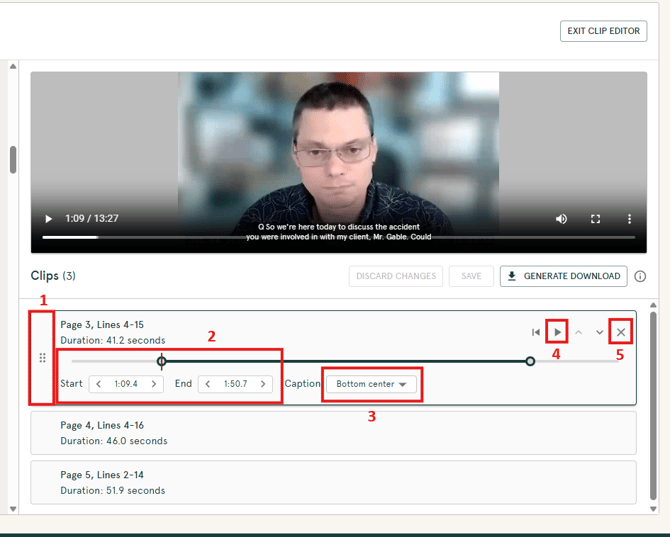
Once you've created a clip, you can fine-tune it from the clip list on the right side of the screen.
- Reorder: drag and drop using the handle on the left or use the up and down arrows to move a clip higher or lower in the list. The order here is the order they'll appear in your merged export.
- Adjust timing: Use the slider to scrub through the clip, or use the Start and End arrows to fine-tune by a tenth of a second.
- Caption placement: Use the Caption dropdown to change where captions appear on the video. Default is "Bottom center."
- Play it back: Use the play button to review your clip, or the restart button to play from the beginning.
- Remove a clip: Click the X to delete it from your list.
Saving Your Clips
Clip cutting does not autosave, so you'll want to click the 'Save' button periodically as you work.
- If you haven't saved in 5 minutes, a reminder will appear at the top of the list.
- If you try to navigate away from the page with unsaved changes, you'll see a warning before anything is lost.
Downloading Clips
1. Click 'Generate Download' to begin processing. Processing time is roughly one-to-one with your total clip length (10 minutes of clips = ~10 minute wait).
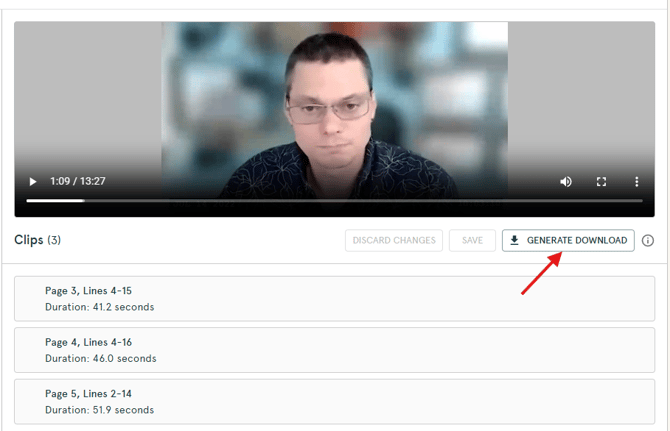
2. You'll receive an email when your clips are ready with a link back to this page. The button will change to 'Download All.'
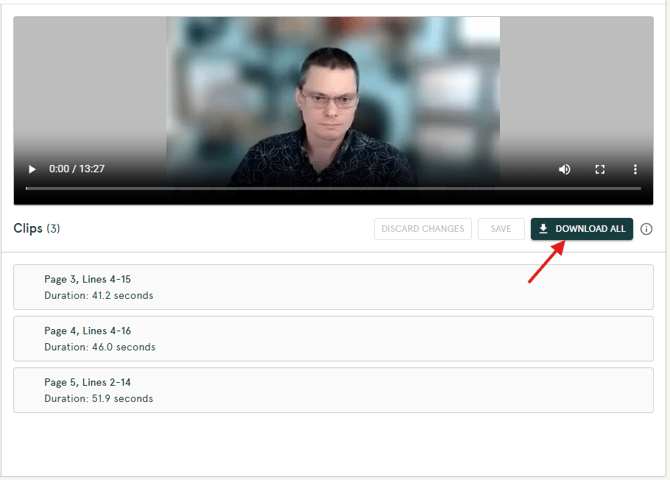
Your download zip file includes individual clips and a merged file (all clips combined in order), each with and without captions burned in.
Returning to Your Clips
You can exit the clip editor and come back anytime. Your saved clips will be right where you left them. While clips are processing, editing is disabled for that transcript, but you can still work on other transcripts.
Important Notes
- Clips are private to your account. Other people in your firm cannot see them.
- You can create up to 100 clips per session, with a maximum length of 30 minutes per clip.
- Clips are named by page and line number. You can rename them after downloading.
- Clips created by Steno's production team are delivered separately and will not appear in Transcript Genius
See it in Action
Troubleshooting
- If you don't see the Clip Editor button, make sure the transcript you selected includes Text-to-Video Sync. Clip cutting is only available on transcripts with synced video.
- If your clips aren't processing, make sure you've saved your work before clicking Generate Download.
- If you're not receiving the email notification when clips are ready, check your spam folder. The email will come from Steno with a link back to Transcript Genius.
- For additional support, contact Steno at concierge@steno.com.