![Steno_Shield_Logo_White_Transparent-1.png]](https://help.steno.com/hs-fs/hubfs/Steno_Shield_Logo_White_Transparent-1.png?height=40&name=Steno_Shield_Logo_White_Transparent-1.png)
Prerequisites
- You must have Transcript Genius Interrogation enabled to upload transcripts. Click here to learn how to enable Transcript Genius for your firm.
Overview
The Firm Dashboard and Transcript Genius are two connected tools that work together to manage your depositions from start to finish. The Firm Dashboard is where you book and manage your deposition jobs. Transcript Genius is where you analyze and interrogate the transcripts from those jobs.
Once a job is completed and your materials are delivered, they will automatically sync to Transcript Genius — no manual action is required.
Accessing Your Transcripts in Transcript Genius
1. Navigate to the Transcript Genius tab in the top navigation of your Firm Dashboard.
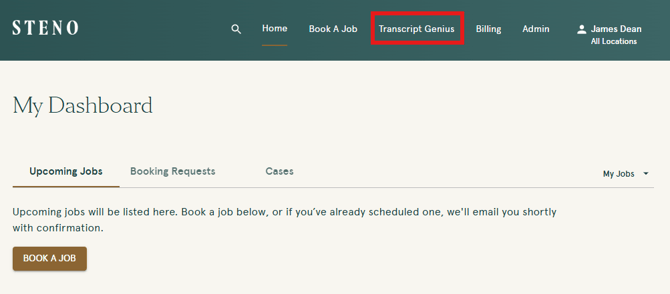
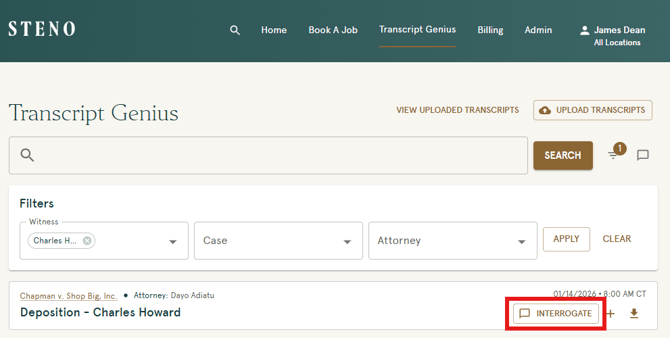
2. Your completed transcripts will be listed on the Transcript Genius page, ready to search and interrogate.
3. Click 'Interrogate' on any transcript to begin using Transcript Genius features.
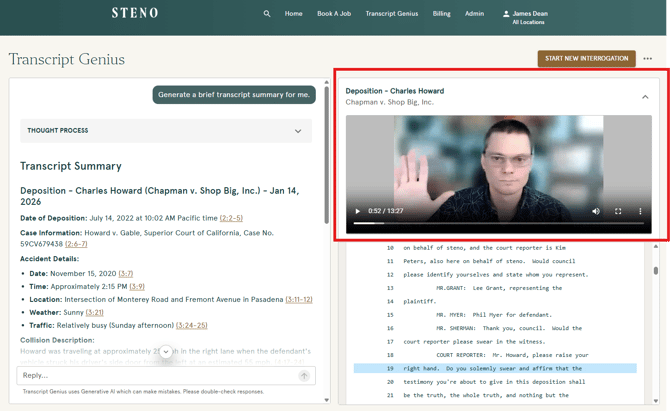
4. If a transcript includes both purchased video and Text-to-Video Sync (T2VS), the video will also be available directly on the transcript page. Learn more about How to Review Synced Video in Transcript Genius.
Troubleshooting
- If a completed transcript is not appearing in Transcript Genius after standard processing time, contact Steno support at concierge@steno.com or call 888.707.8366.
- If you do not see the Transcript Genius tab in your navigation, your firm administrator may need to enable Transcript Genius for your account. Click here to learn how.
- If you do not see video available on a transcript page, confirm that both video services and Text-to-Video Sync (T2VS) were purchased for that job. Both are required for video to appear. Learn more about Steno's video products.