![Steno_Shield_Logo_White_Transparent-1.png]](https://help.steno.com/hs-fs/hubfs/Steno_Shield_Logo_White_Transparent-1.png?height=40&name=Steno_Shield_Logo_White_Transparent-1.png)
- You must have Transcript Genius enabled for your firm. Click here to learn how.
Overview
When you navigate to the Transcript Genius tab in your Firm Dashboard, you'll see a list of all your Steno-provided transcripts. Each transcript displays key details — including the case name, attorney, witness name, and date — that help you identify and organize your transcripts. For uploaded transcripts, you can add or edit these details to make them easier to find.
Filtering Your Transcripts
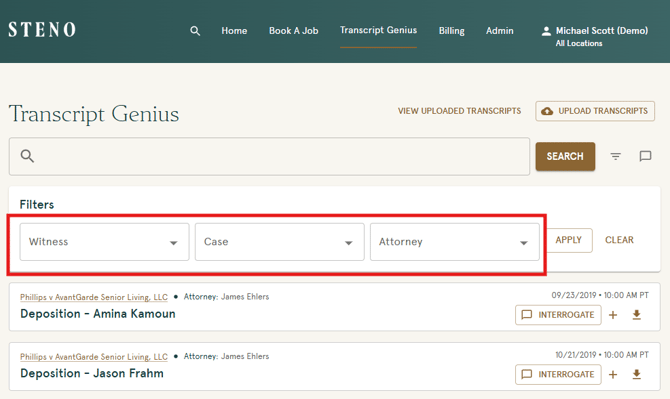
1. Use the Filters section below the search bar to narrow your results by Witness, Case, or Attorney.
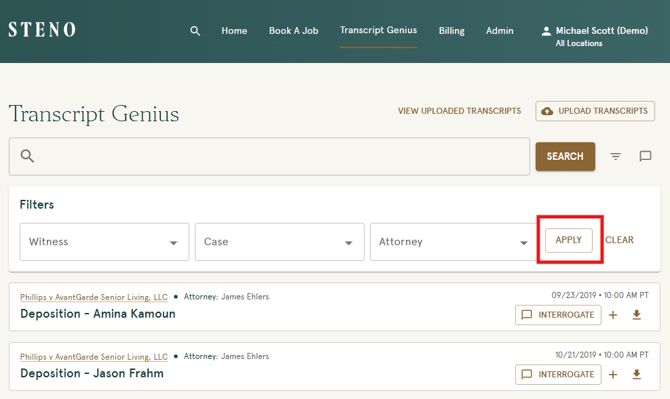
2. Click 'Apply' to run the filter.
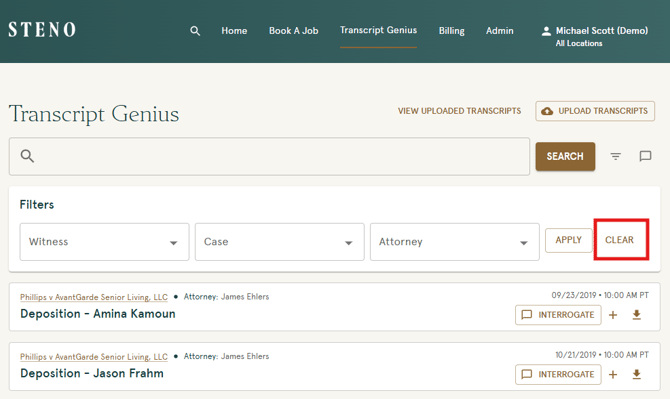
3. To reset your filters, click 'Clear'.
Filters apply to both your Steno-provided transcripts and your Uploaded Transcripts.
Searching Your Transcripts
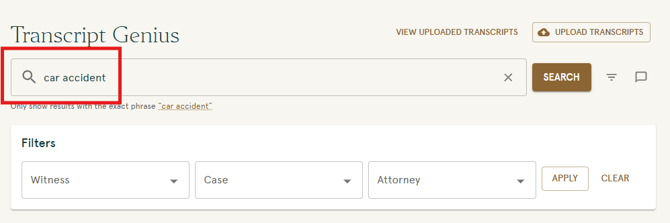
- Type a keyword, phrase, or topic into the search bar and click 'Search'.
Transcript Genius uses two types of search to return results. Exact match highlights your search term directly within the transcript text. Semantic search goes a step further — it finds transcripts similar to your topic even if the exact words don't appear. For example, searching "car accident" might surface transcripts that reference a "collision."
2. Review your results. Results are displayed in two sections:
- References similar to your search term — semantic search results
- Exact match results showing the number of transcripts found, with the matching text previewed beneath each listing

Search results apply to both your Steno-provided transcripts and your Uploaded Transcripts.
Troubleshooting
- If your transcript is not appearing in filtered search results, make sure its details have been filled in. Uploaded transcripts with missing details may be harder to locate. Click 'Edit' from the three dots menu to add details. Learn more about How to Upload External Transcripts to Transcript Genius.
- If you do not see the Transcript Genius tab in your navigation, your Firm Administrator may need to enable Transcript Genius for your account. Click here to learn how.