![Steno_Shield_Logo_White_Transparent-1.png]](https://help.steno.com/hs-fs/hubfs/Steno_Shield_Logo_White_Transparent-1.png?height=40&name=Steno_Shield_Logo_White_Transparent-1.png)
If you are not yet familiar with the Firm Dashboard, you can see an overview and one-minute video introduction here: Steno Firm Dashboard
How Your Firm Gets an Admin
IMPORTANT: Every Firm Dashboard needs at least one admin. If your firm is new, the first person to activate an account is automatically assigned as admin, no need to contact Steno.
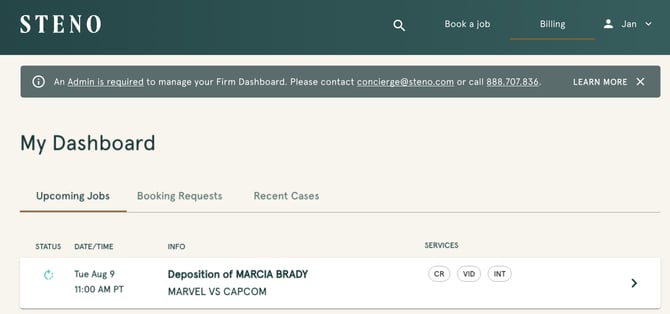
The reminder banner below may still appear if your firm doesn't have an active admin yet:
Recap of Admin Features
Users who are listed as Firm Dashboard admins will have the following additional features:
- Add/Remove/Manage Users
- Enable new features like Transcript Genius
- Manage Case Access
- See full list of users from your firm and their account status (invited, activated, deactivated)
- Add other admins to your account
How to View List of Users
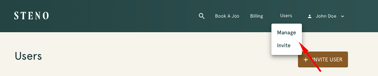
Each admin will notice a “Users” tab on the Dashboard:
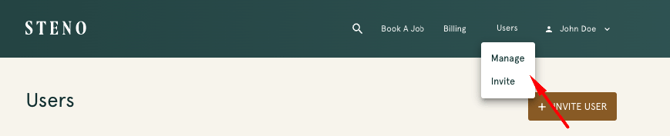
If the user selects the "Manage" option in the dropdown, they will be directed to the the users page where they can see all users associated with the Firm Dashboard account - organized by Active, Inactive, and Invited users.
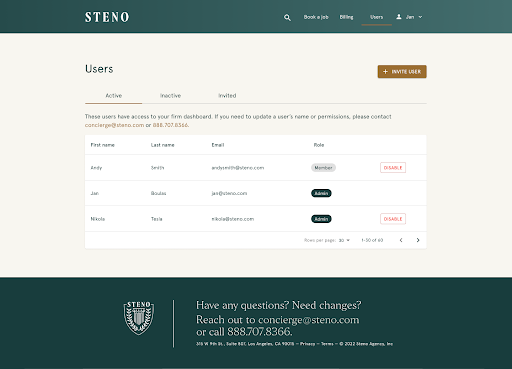
In the “Active” tab, admins will see a list of all people associated with the firm that have access to the Firm Dashboard. Each person listed here can book new jobs, view and pay invoices, and access order materials associated with the firm.
In the “Role” column, admins can easily see each member’s account status. If an admin would like to change an existing account from 'User' to 'Admin,' or vice-versa, simply update their role in the Role column. The change applies immediately and the user will see their updated permissions the next time they log in.
How to Disable Users
On the users page, admins can disable active user accounts by clicking the "disable" button (but you cannot disable “Admin” accounts from the Firm Dashboard). When you disable an existing user, you will also be able to indicate whether that person has left the firm.
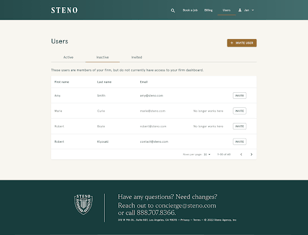
All deactivated accounts will be listed on the “Inactive” tab. If a user with a disabled account was marked as “no longer works at firm,” this note will be indicated in the table. This tab will also include users that have done work with Steno but do not have a dashboard account yet created.
How to Invite New Users
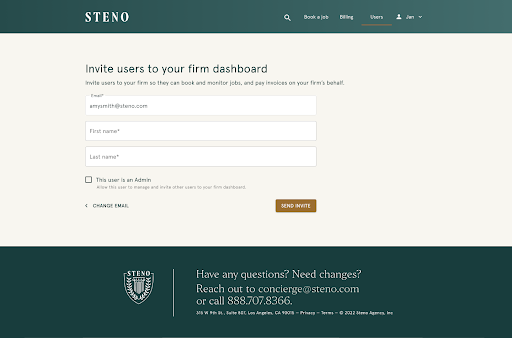
To offer Dashboard access to a new user, just click the “+ Invite User” button or click the "Invite" option from the "Users" dropdown list.
You’ll enter these few items - it just takes a few seconds! (Please also specify if the new user should be an admin by selecting the checkbox)
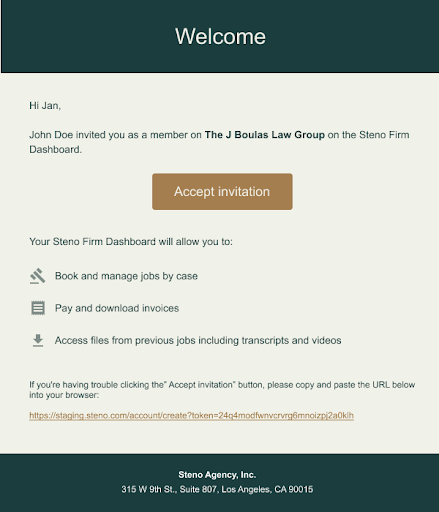
Once you click "Send Invite", your invitee will see this message, via email:
IMPORTANT: Please note that every user you invite to your Firm Dashboard will be able to:
- Book jobs and create new cases
- View upcoming and complete jobs
- View job materials (exhibits, transcripts, videos)
- View and pay open invoices
- Generate statement of accounts
With these details in mind, Steno recommends the following:
- Admins should only send Firm Dashboard invitation links to people employed at the firm and authorized to access account information. Steno is not responsible for the invites your admins send out.
- Have more than one admin associated with your Firm Dashboard account in case your current admin leaves the firm.