![Steno_Shield_Logo_White_Transparent-1.png]](https://help.steno.com/hs-fs/hubfs/Steno_Shield_Logo_White_Transparent-1.png?height=40&name=Steno_Shield_Logo_White_Transparent-1.png)
Case access settings control who can see and work on specific cases. They're part of Role-Based Access Control (RBAC), giving you granular control over case visibility and permissions.
Important: In order to manage case access you must be a Case Admin or Firm Admin
On This Page
Change Firm-Wide Access to a Case
Control whether everyone in your firm can view case materials or manage a case.
Make Case Materials Visible to Everyone
- Navigate to the case
- Click "Manage Access"
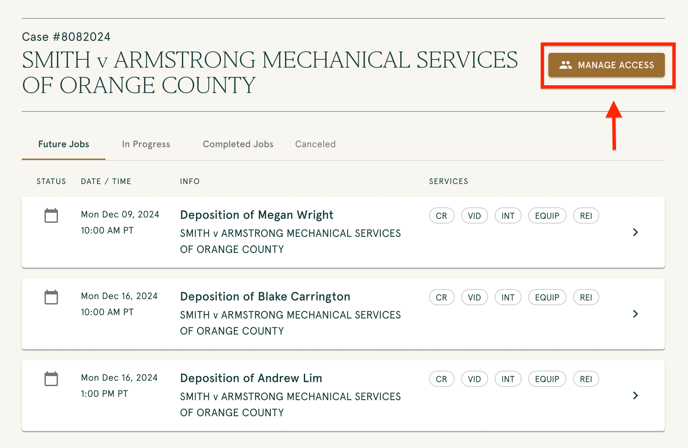
- Open the dropdown next to "Entire firm" to adjust case access permissions
- Select a role (Case Viewer)
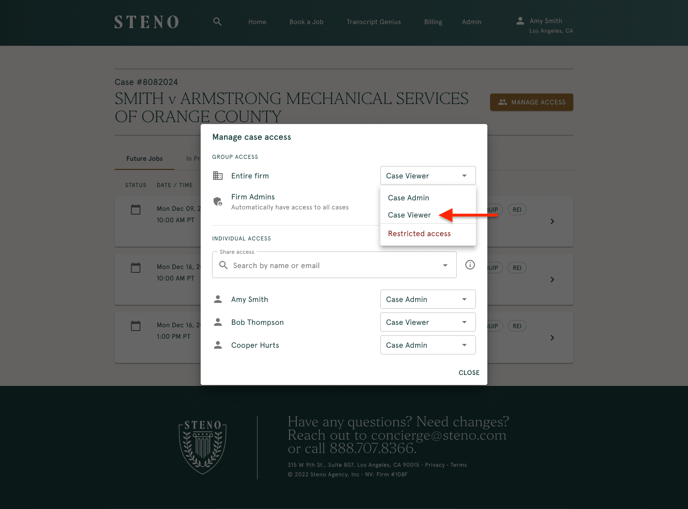
- Save changes
.png?width=688&height=510&name=Case%20Details%20(2).png)
Result: Now firm members can see all jobs and materials for this cases, but cannot manage access.
Restrict a Case to Select Users
Lock down a case so only specific people can access it.
- Navigate to the case
- Click "Manage Access"
- Open the dropdown next to "Entire firm" to adjust group access permissions
- Change to "Restricted Access"
.png?width=688&height=510&name=Case%20Details%20(3).png)
- Save changes
Result: Only users you explicitly add (and Firm Admins) can see case materials.
Change User Roles
Add Users
- From the case page, click "Manage Access"
- Use the search field to find and add specific user for individual access.
.png?width=688&height=510&name=Case%20Details%20(8).png)
.png?width=688&height=510&name=Case%20Details%20(10).png)
- Choose their role:
- Case Admin - Can manage access to the case and see all materials
- Case Viewer - Can see all materials but cannot manage access
.png?width=688&height=510&name=Case%20Details%20(12).png)
- Click "Share"
Result: Your newly added users can now see all materials.
Remove Users from a Case
- From the case page, click "Manage Access"
- Identify the user you would like to remove. Select "Remove Access" next to the user's name from the dropdown
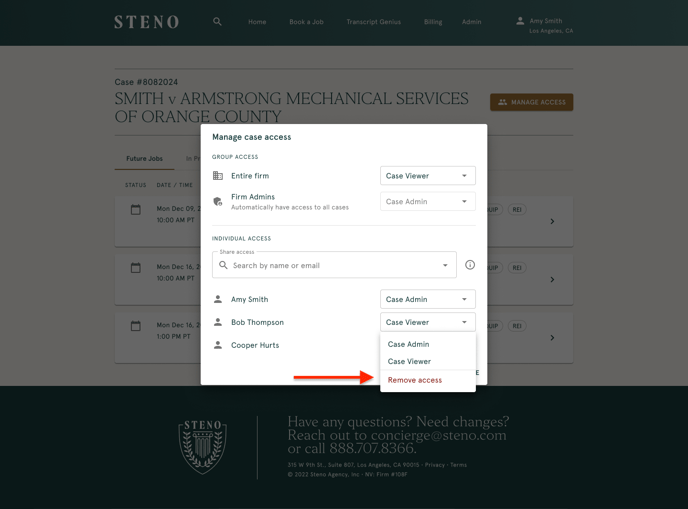
- Click "Save"
.png?width=688&height=510&name=Case%20Details%20(19).png)
Note: You cannot remove Job Managers (automatically assigned) or the last Case Admin on a case.
Change a User's Role
- From the case page, click "Manage Access"
- Find the user
- Click the dropdown next to their name
.png?width=688&height=510&name=Case%20Details%20(18).png)
- Select the new role (Case Admin)
.png?width=688&height=510&name=Case%20Details%20(16).png)
- Save changes
Common Scenarios
Restrict a Confidential Case
- Navigate to the case
- Click "Manage Access"
- Open the dropdown next to "Entire firm" to adjust group access permissions
- Select "Restricted Access"
.png?width=688&height=510&name=Case%20Details%20(4).png)
- Then add only essential team members by following the instructions here
Security Tip: The "Manage Access" modal displays all users who have ever had access, including disabled accounts. Disabled users cannot access the case—they appear for record-keeping only. To review a user's access across multiple cases, you must check each case individually; there is no central view.
Onboard a New Attorney
First, invite the new attorney to the firm dashboard. Click here to learn how.
Then, grant case access:
- Navigate to each case they need access to
- Click "Manage Access"
- Add them with the appropriate role
Remove Access When Someone Leaves
- Navigate to each case they had access to
- Click "Manage Access"
- Remove the user
- If they were the only Case Admin, assign a new one first
Troubleshooting
Q. I can't find the Manage Access button.
A. Only Firm Admins and Case Admins can manage access
Q. I don't see my colleague in the drop down menu to add them to the case.
A. Users need an activated firm dashboard account first, before you can add them to a case. Learn how to invite a new users here
Q. I can't remove a user from a case.
A: There are three common reasons you might not be able to remove someone:
- They're the last Case Admin - Every case must have at least one Case Admin. To remove them, add another user as Case Admin first, then you can remove or change the original admin's role.
- You don't have permission - Only Firm Admins and Case Admins can remove users. If you're a Case Viewer or Job Manager, you won't see the remove option.
Need help? Contact your Firm Administrator or Steno Support at concierge@steno.com