![Steno_Shield_Logo_White_Transparent-1.png]](https://help.steno.com/hs-fs/hubfs/Steno_Shield_Logo_White_Transparent-1.png?height=40&name=Steno_Shield_Logo_White_Transparent-1.png)
Prerequisites
- You must have Litigation Genius enabled to upload files to a case. Click here to learn how to enable Litigation Genius for your firm.
- You must have Case Admin or Case Viewer access to a case to upload files to that case.
Steps To Upload Files
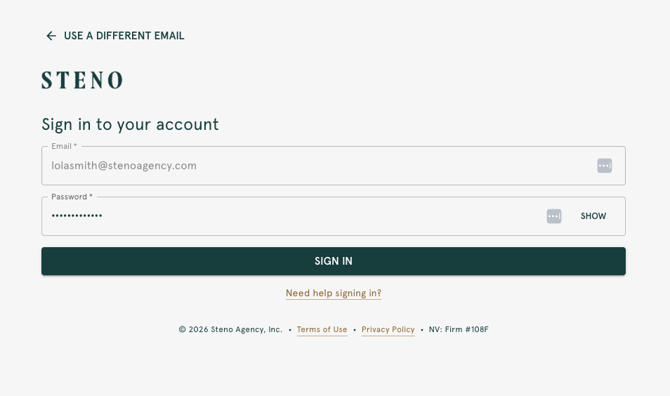
1. Log into your Firm Dashboard.
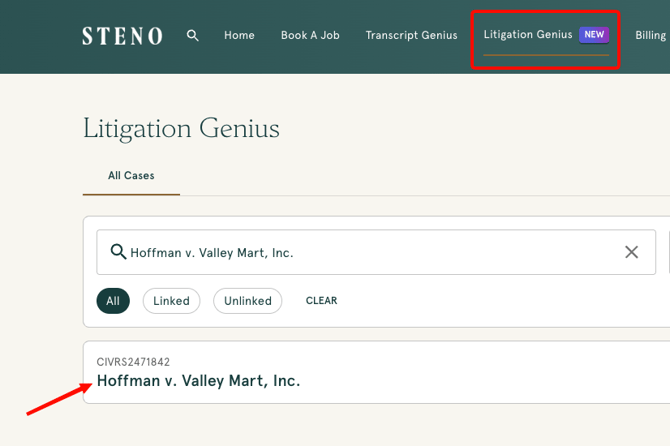
2. Navigate to the Litigation Genius tab, then choose your case from the list or search by case name or number.
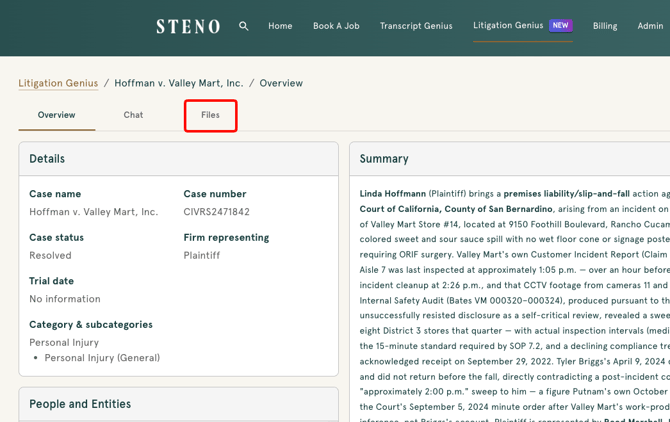
3. Click the 'Files' tab.
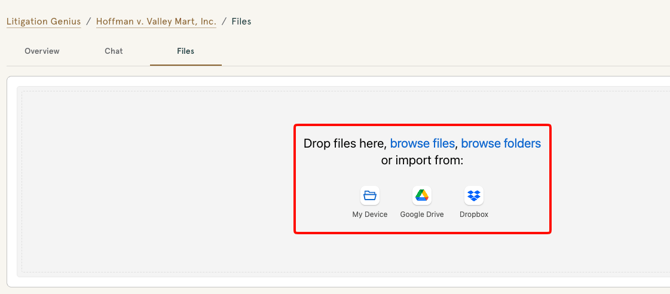
4. Drop files here, or click 'browse files' or 'browse folders' to select from your computer. You can also import directly from Google Drive or Dropbox.
Note: You'll notice your firm's existing transcripts and marked exhibits for this case are already listed below the upload area, Litigation Genius automatically pulls those in, so there's no need to upload them manually. The steps below cover adding supplemental documents, like medical records, case briefs, or depositions from other cases.
5. Once you've selected or dropped your file(s), click 'Upload' to begin the upload. 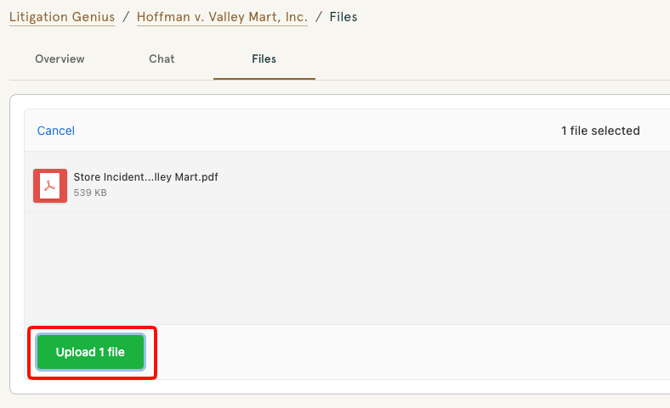
6. Once the upload is complete, you can click 'Add more' to upload additional files, or click 'Done' to finish. For smaller files, this may happen almost instantly. Larger files may take a moment to process before showing as complete. 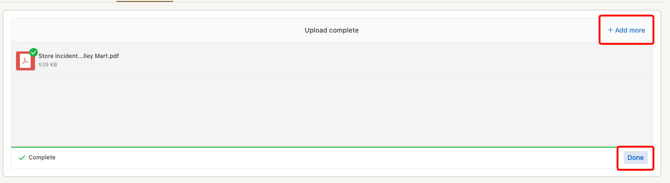
7. Your file(s) will now appear in the firm case files list. 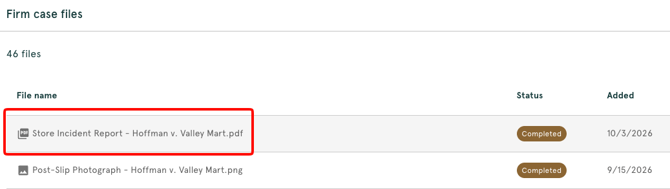
Watch The Click-Through Demo
Troubleshooting
- If you don't see the 'Files' tab, you may not have Litigation Genius enabled for your firm, or you may not have access to that specific case. Click here to learn how to enable Litigation Genius, or contact your Firm Admin to confirm your case access.
- If a user doesn't appear when searching under 'Individual Access,' they may not yet have access to your Firm Dashboard. Ask your Firm Admin to send them an invitation first.
- If your file type isn't supported, convert it to one of the following before uploading: .pdf, .txt, .doc, .docx, .pptx, .xls, .xlsx, .png, or .jpeg.
- For additional support, contact Steno at concierge@steno.com.