![Steno_Shield_Logo_White_Transparent-1.png]](https://help.steno.com/hs-fs/hubfs/Steno_Shield_Logo_White_Transparent-1.png?height=40&name=Steno_Shield_Logo_White_Transparent-1.png)
Prerequisites
- You must have Case Admin or Case Viewer access to a case to share a chat with your case team.
Steps to Share a Conversation
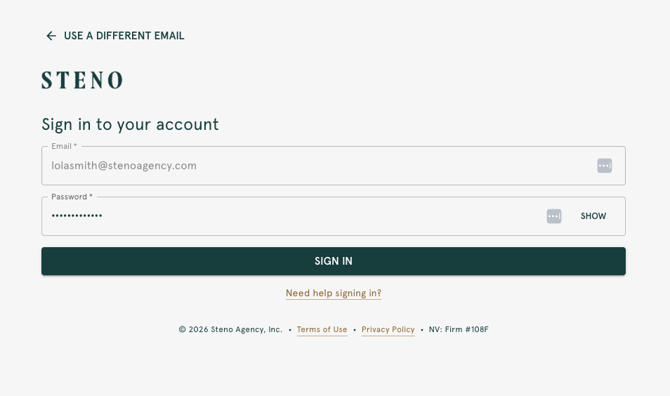
1. Log into your Firm Dashboard.
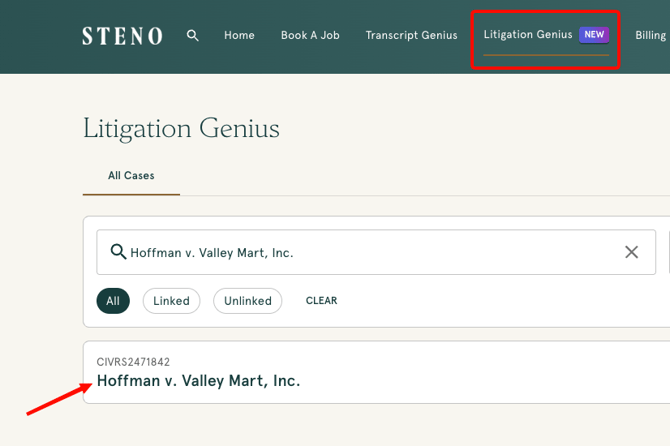
2. Navigate to the Litigation Genius tab, then choose your case from the list or search by case name or number.
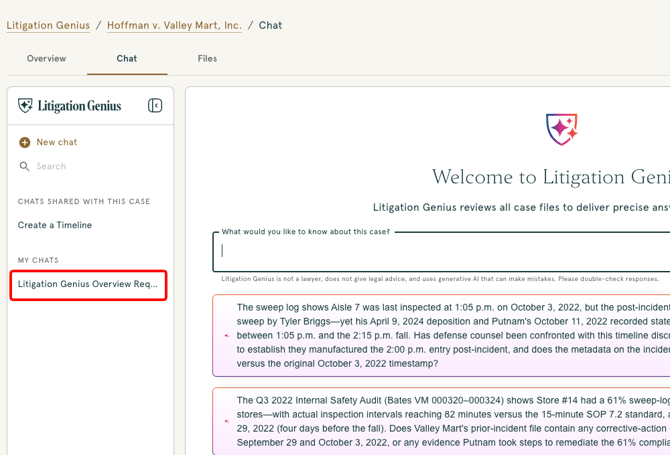
3. Click the Chat tab to bring up your list of chats for that case, including any you've already started.
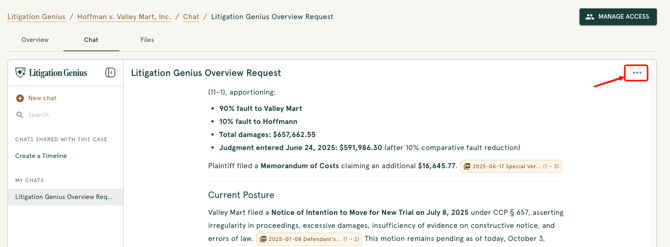
4. Click the three dot menu next to the chat you'd like to share. You'll see three options: Rename, Share, and Delete.
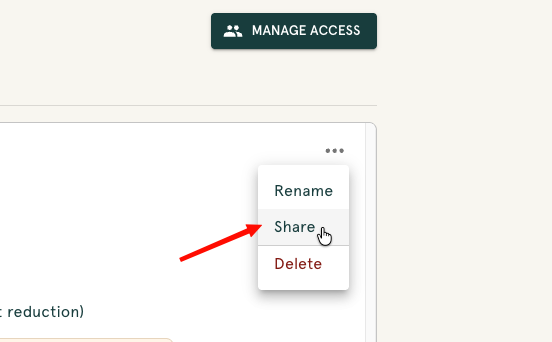
5. Select Share. A pop-up window will appear letting you know that sharing makes the chat visible to everyone with access to the case. They can view the message history up to that point and copy the chat into their own list, but messages sent afterward won't appear in the shared copy.
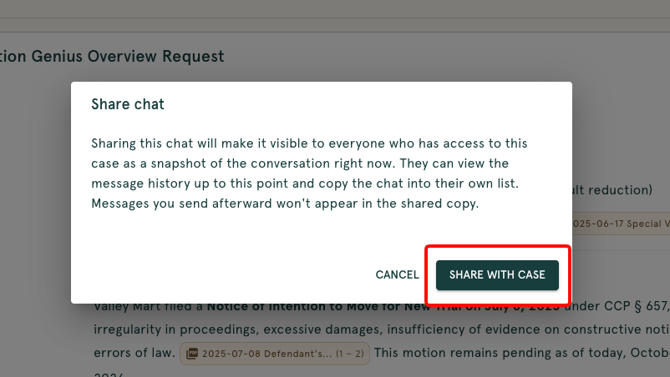
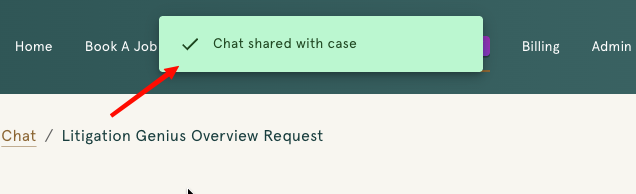
6. Click Share With Case to confirm. You'll see a confirmation message at the top of the page letting you know the chat was shared.
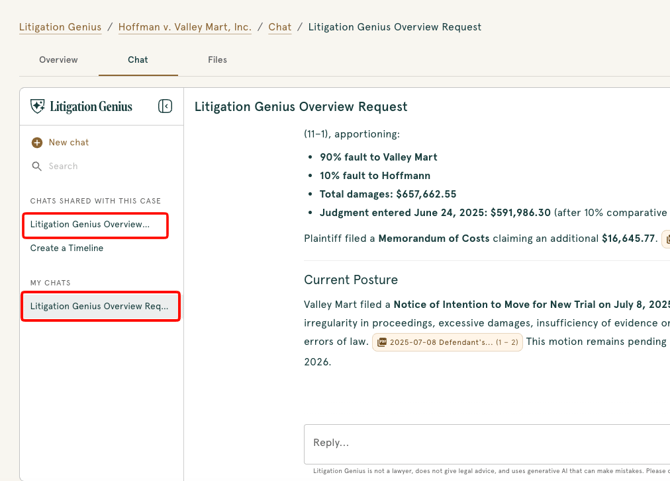
7. Check the sidebar. The chat now appears under both 'Chats Shared With This Case' and 'My Chats', so your team can find it without losing your original copy.
What Your Case Team Can Do With a Shared Chat
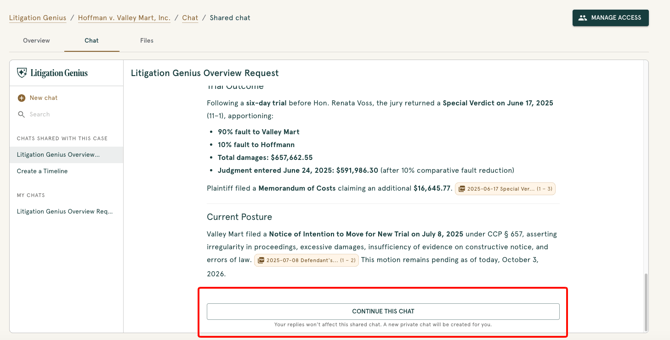
Once a chat is shared, anyone with access to the case can open it from Chats Shared With This Case and click Continue This Chat to pick up where it left off. This creates their own private copy, so their replies won't affect the original shared chat.
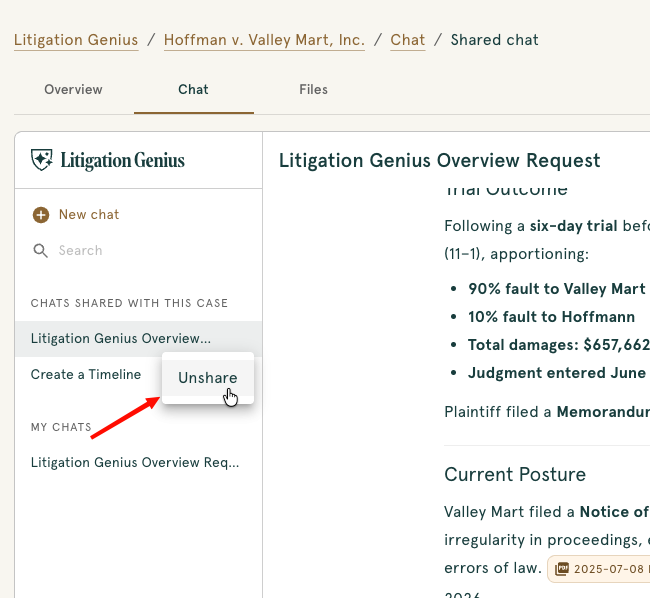
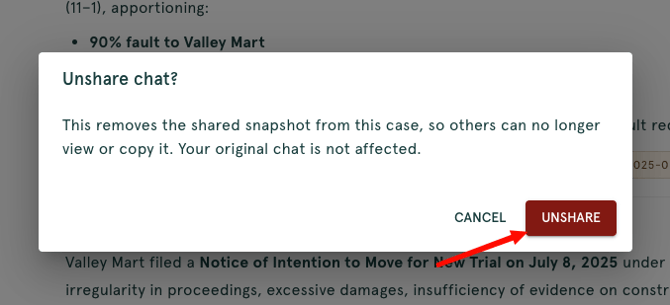
If you want to revoke access at any time, click the three dot menu next to the shared chat and select 'Unshare'. This removes the shared snapshot from the case, so others can no longer view or copy it, but your original chat is not affected.
Watch The Click-Through Demo
Troubleshooting
-
Can someone without case access view a shared chat?
No. Sharing is scoped to case access, so only users who already have access to the case can see a shared chat.For additional support, contact Steno at concierge@steno.com.