![Steno_Shield_Logo_White_Transparent-1.png]](https://help.steno.com/hs-fs/hubfs/Steno_Shield_Logo_White_Transparent-1.png?height=40&name=Steno_Shield_Logo_White_Transparent-1.png)
The Schedule page is a tab in your Provider Dashboard that shows your upcoming jobs in a calendar view and lets you share your availability with Steno.
Note: When you set your schedule, our team has better context when sending you job offers. Over time, our goal is to use your availability to send you automatic job offers that fit your hours, so you spend less time sorting through offers that don't work for you.
How to Set Up Your Schedule
Step 1. Access the Schedule page
- Log into your Provider Dashboard
- Click the Schedule tab in the navigation
![FireShot Capture 935 - Steno Provider Dashboard - [staging.steno.com]](https://help.steno.com/hs-fs/hubfs/Knowledge%20Base%20Image%20and%20Video%20Media/FireShot%20Capture%20935%20-%20Steno%20Provider%20Dashboard%20-%20%5Bstaging.steno.com%5D.png?width=670&height=334&name=FireShot%20Capture%20935%20-%20Steno%20Provider%20Dashboard%20-%20%5Bstaging.steno.com%5D.png)
You'll see a calendar with your upcoming jobs already populated. You can switch between daily, weekly, and monthly views.
Your calendar reflects the time zone associated with your address on file.
Step 2. Set your working hours
Working hours are your recurring weekly availability. Setting these helps us understand when you're typically open to taking jobs.
- From the Schedule page, click Set working hours
- Select the days of the week you typically work
- Set your start and end times for each day
- Click Save
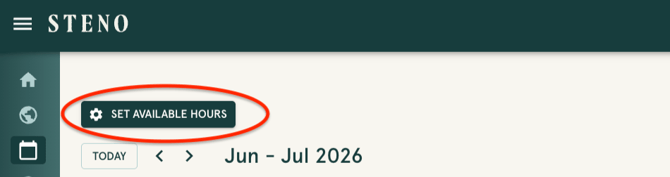
Your working hours will appear on your calendar and repeat weekly. You can edit or delete them at any time.
Step 3. Add a one-off availability or unavailability block
Use this to mark specific windows outside your normal working hours - whether you're open for a job or need time off.
- From the Schedule page, click and empty spot to manually update your availability for a specific date and time
- Select the time range and Mark your status as Available or Unavailable
- To span multiple days, check Span multiple days and set the end date for extended time off or multi-day availability
- Click Save
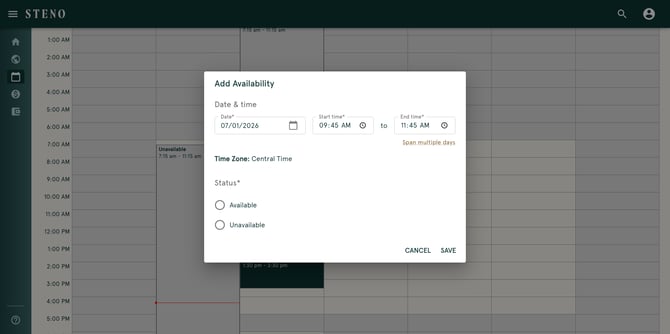
Your calendar will visually distinguish between booked jobs, available time, and unavailable time.
Watch The Demo
Frequently Asked Questions
What is the Schedule page?
The Schedule page is a new tab in your Provider Dashboard. It gives you a calendar view of your upcoming jobs and lets you set your working hours and mark when you're available or unavailable.
I don’t have a Provider Dashboard account, what do I do?
Email us at concierge@steno.com and we will get you set up.
What can I do on the Schedule page?
You can:
- See your upcoming jobs in a daily, weekly, or monthly calendar view
- Set recurring working hours so we know when you're typically available
- Mark specific days or time blocks as available or unavailable
- Add multi-day availability or unavailability blocksWhat time zone does my schedule use?
Your schedule reflects the time zone associated with your address on file.
What does Steno do with my schedule right now?
Right now, your schedule gives our team better context when they're sending you offers for jobs.
Will I get better job offers if I set my schedule?
Yes, over time. Our goal is to use your availability to send you job offers that fit your hours, so you spend less time sorting through offers that don't work for you. The more information you give us, the better.
Will I miss out on jobs if I don't set up my schedule?
No. Nothing about how you receive and accept jobs is changing right now. You can still claim jobs on the Marketplace and accept offers the same way you always have. Setting up your schedule is optional, but it helps us send you better matches down the line.
Can I mark myself unavailable for a vacation or time off?
Yes. You can add a one-off unavailability block for any date or time range, including multi-day blocks.
Can I edit or delete my working hours after I set them?
Yes. You can update your working hours and availability at any time from the Schedule tab.
Can I access the Schedule page on my phone?
Yes, the Schedule page is mobile responsive.
Have a question that isn't answered here? Reach out to us at concierge@steno.com.