![Steno_Shield_Logo_White_Transparent-1.png]](https://help.steno.com/hs-fs/hubfs/Steno_Shield_Logo_White_Transparent-1.png?height=40&name=Steno_Shield_Logo_White_Transparent-1.png)
Steps to Book a Service
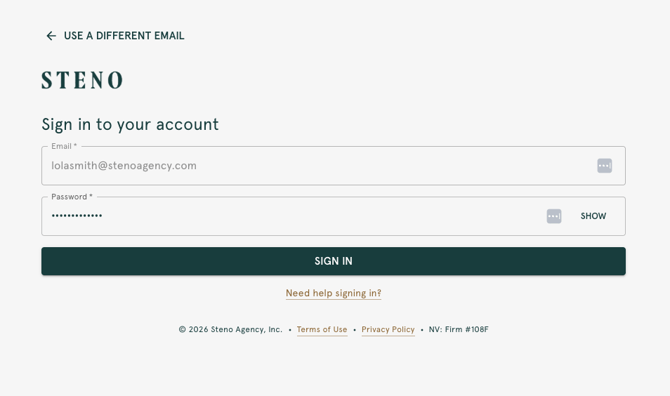
1. Log into your Firm Dashboard.
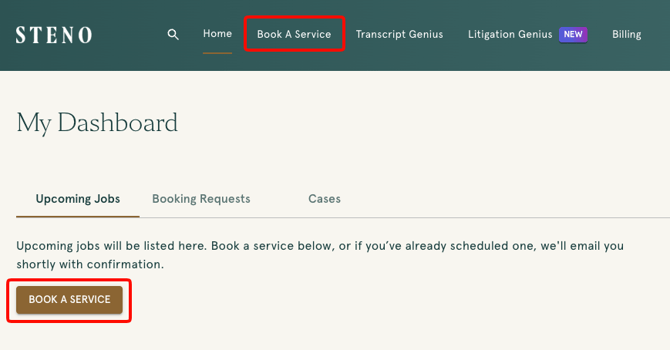
2. Click 'Book A Service' from either the top navigation or the button under 'My Dashboard'.
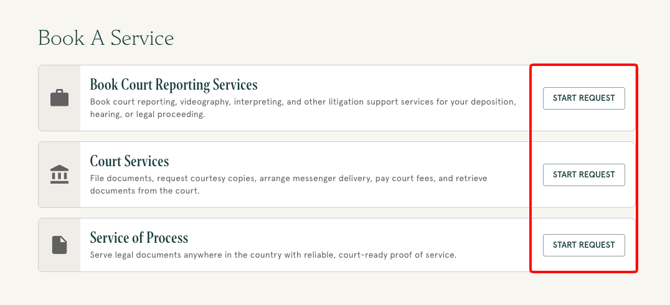
3. Choose the service you need: 'Book Court Reporting Services', 'Court Services', or 'Service of Process". Click 'Start Request'.
Court Reporting Services:
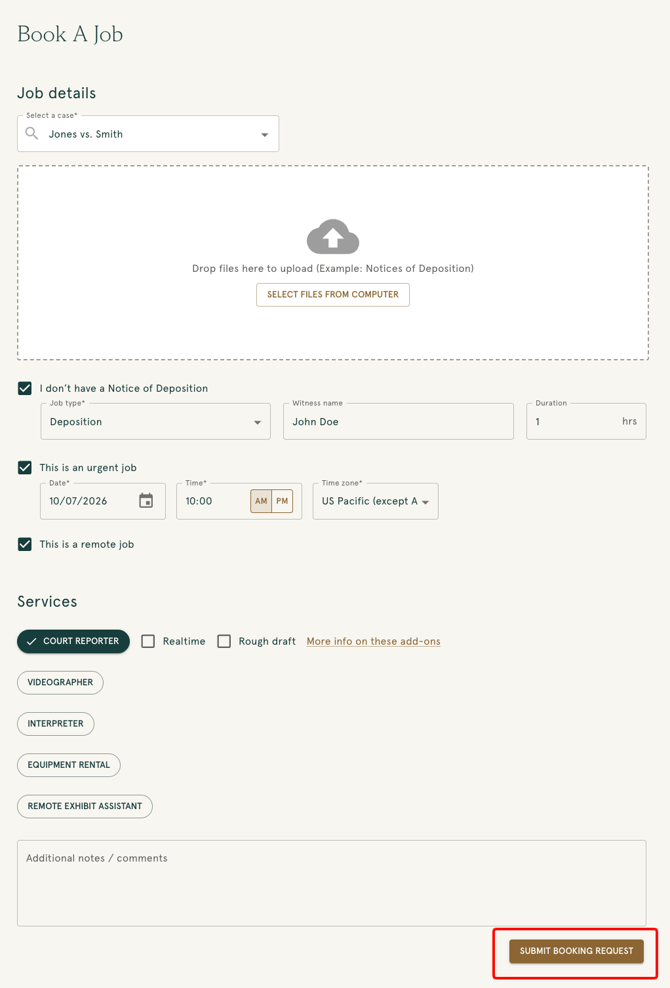
Book a court reporter, videographer, interpreter, or other litigation support service for your deposition, hearing, or legal proceeding. This opens the 'Book A Job' form. Select a case, upload your Notice of Deposition (or check 'I don't have a Notice of Deposition'), fill in the job details, choose your services, then click 'Submit Booking Request'.
Court Services:
Select the type of request then click 'Continue'.
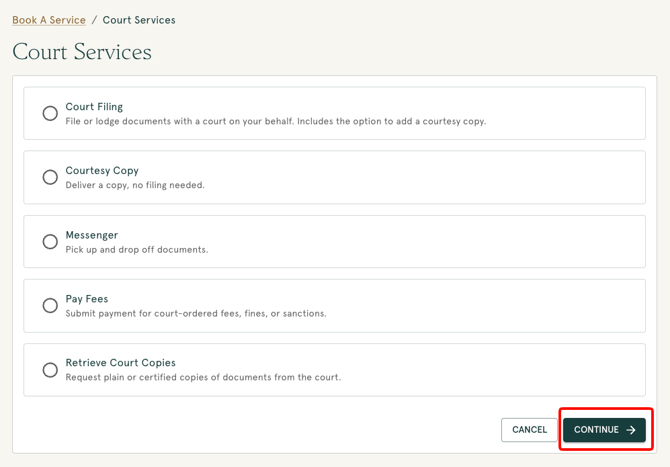
- Court Filing: Upload your documents. Tell us the court, whether you need service too, and if anything is sealed or confidential. Add a reference or matter number.
- Courtesy Copy: Upload your documents. Tell us where to send the copy and when.
- Messenger: Give us pickup and drop-off addresses and a time. Documents are optional.
- Pay Fees: Tell us the court, case number, and amount owed.
- Retrieve Court Copies: Tell us if you need certified copies, plain copies, or both.
For all request types, choose your completion date and time, confirm who should receive email notifications, and add a reference or matter number.
When you're done, click 'Submit Request'.
Service of Process:
- Upload documents (20MB limit) or paste a shared link (SharePoint, Dropbox, OneDrive, or Google Drive).
- Enter the servee's name and address, or check 'I do not have an address to serve' to request a skip trace (extra charge applies).
- Add more servees if needed.
- Choose a service level: 'Urgent' (first attempt within 24 hours if received by noon), 'Rush' (2 days), or 'Standard' (3 days).
Choose a requested completion date, confirm who should receive email notifications, and add a reference or matter number.
When you're done, click 'Submit Request'.
What Happens After You Submit
You'll see a confirmation screen, and we'll notify you via email to confirm the details of your request. If you have questions, contact litsupport@steno.com or 888.707.8366.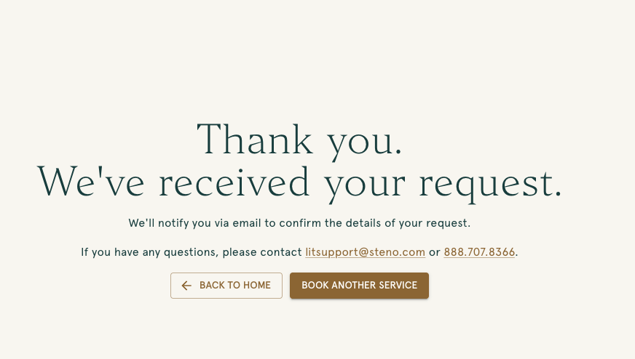
Note: These requests won't show up as jobs on your Firm Dashboard yet. We're working on that. For now, our team will keep you updated by email or phone. This experience is currently desktop only.
Questions or Feedback
Reply to the beta announcement email or reach out to your Steno contact. You can also share feedback here. We're actively improving this based on what you tell us.